

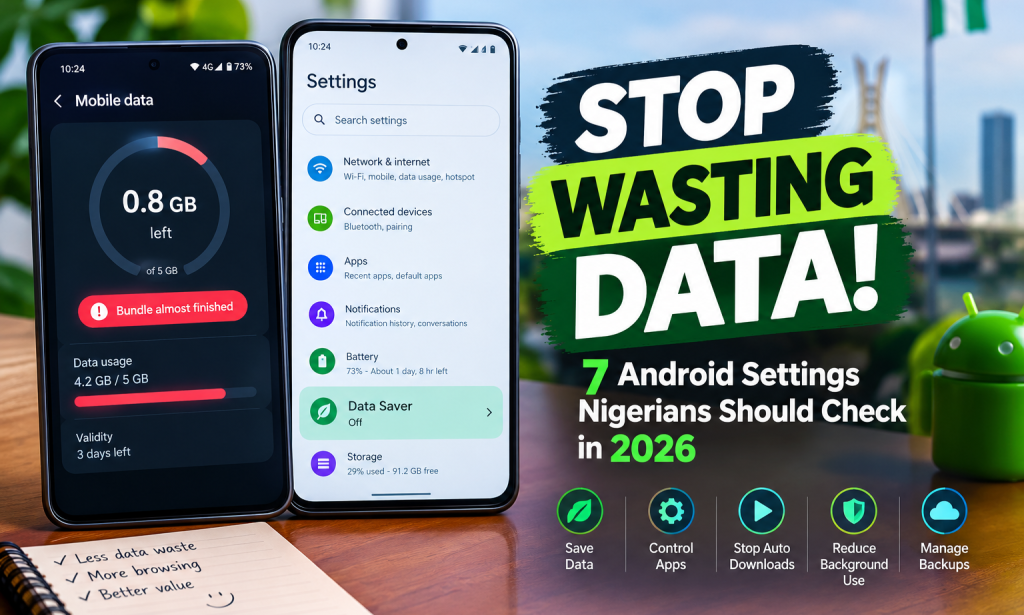
Have you ever subscribed to a mobile data bundle, started browsing, and wondered where all your data went just a few days later? You are not alone. For many Nigerians, mobile data is an everyday expense, whether it is used for online classes, social media, entertainment, business, or staying connected with friends.
But here is something many smartphone users overlook: you may be using more data than necessary because of your phone’s settings.
Your Android phone can consume mobile data while apps run in the background, videos play automatically, and applications download updates. The good news is that you can review several settings to reduce unnecessary usage without giving up your favourite apps.
Here are seven settings worth checking in 2026.
1. Turn On Data Saver
Data Saver is one of the simplest ways to reduce background data consumption on Android. When enabled, it restricts background mobile data for most apps, although apps you are actively using can still access the internet.
How to enable it:
- Open your phone’s Settings.
- Search for “Data Saver” using the Settings search bar.
- Open the option and switch it on.
The exact menu may differ depending on your phone brand and Android version. Some apps may also need unrestricted data access to function properly.
If you use an OPPO, Samsung, Tecno, Infinix, or another Android phone, searching directly in Settings is often the easiest starting point.
2. Stop Automatic App Updates on Mobile Data
Apps regularly receive updates that improve performance, fix bugs, or introduce new features. However, downloading updates over mobile data can consume a significant portion of your bundle.
To prevent this, open the Google Play Store, tap your profile picture, select Settings, and look for Network preferences. Set automatic app updates to occur over Wi-Fi only.
You can still update apps manually when you have enough data or access to Wi-Fi.
Remember that security updates are important, so do not ignore them indefinitely. Simply choose a more suitable time and connection to download them.
3. Restrict Apps That Use Background Data
Some applications continue exchanging information even when you are not actively using them. Depending on the app, this may include syncing content, refreshing feeds, or checking for updates.
To investigate:
- Open Settings.
- Go to Apps and select an application.
- Look for Mobile data, Data usage, or a similar option.
- Review its background data permission.
Restrict background data for apps that do not need constant connectivity.
Be careful with messaging apps, email, and other services where timely notifications matter. Restricting their background access may delay messages or updates.
4. Disable Automatic Media Downloads on WhatsApp
WhatsApp can automatically download photos, videos, documents, and other media sent to your chats. If you belong to several active groups, these downloads can add up.
To manage them, open WhatsApp and navigate to Settings, then Storage and data. Under Media auto-download, review the options for mobile data.
You can deselect automatic downloads for media types you would rather download manually.
This gives you more control over what consumes your bundle. You can still download important photos or videos when you choose to.
5. Reduce Video Quality and Autoplay
Videos are often more data-intensive than text messages or ordinary web pages. Streaming at high resolution can consume your bundle quickly, especially when watching several videos in succession.
Check the settings in apps such as YouTube, Facebook, and other video platforms. Look for options that reduce mobile data usage, lower video quality, or prevent automatic playback.
On YouTube, for example, you can adjust video quality preferences for mobile networks.
If you watch videos frequently, choosing a lower resolution can help. You do not always need the highest available quality to enjoy a video on a phone screen.
6. Set a Data Warning or Usage Limit
Instead of waiting until your bundle is exhausted, let your phone help you monitor consumption.
Open Settings and search for “Data usage,” “Data warning,” or “Data limit.” If your device supports these options, set a warning below your expected allowance.
For example, if you have a 5 GB bundle, you could set a warning at 4 GB so you have time to review your usage before reaching the limit.
Keep in mind that your phone's usage estimate may differ from your network provider's records. Your carrier's app or usage-checking service can help you confirm your remaining balance.
7. Review Cloud Backups and Photo Syncing
Cloud services can upload photographs, videos, and files automatically. This is useful for keeping your files backed up, but large uploads may consume mobile data.
Open the settings of your cloud storage or photo backup app and check whether uploads are allowed over mobile data.
Where appropriate, select Wi-Fi-only uploads or disable mobile-data backups for large files.
Do not disable backups without considering the consequences. Instead, adjust the connection settings so important files can still be protected when Wi-Fi is available.
Bonus Tip: Find Out Which Apps Use the Most Data
If your data still disappears quickly, check your phone’s mobile data usage screen. It can show which applications have consumed the most data during a selected period.
This helps you identify the actual cause instead of disabling random features.
Android settings vary across manufacturers and software versions, so the menu names on your phone may differ slightly. Google's Android documentation and the Nigerian Communications Commission's guidance both explain how Data Saver and data-usage controls can help users manage consumption.
Sources: Android Data Saver guide | Nigerian Communications Commission data-usage guidance
Final Thoughts
You do not necessarily need to buy a bigger data bundle to improve your browsing experience. Sometimes, the first step is understanding where your existing data goes.
Start with Data Saver, automatic updates, WhatsApp downloads, and video settings. Then check your usage statistics to see whether your changes make a difference.
No single setting will guarantee that your data lasts a particular number of days, but managing unnecessary background activity can give you greater control over your consumption.
Which of these settings did you discover for the first time? Share your experience in the comments. If this guide helped you, please like the article, follow me for more practical tech tips, share it with someone who keeps running out of data, and consider donating to support more useful articles.


You must be logged in to post a comment.