

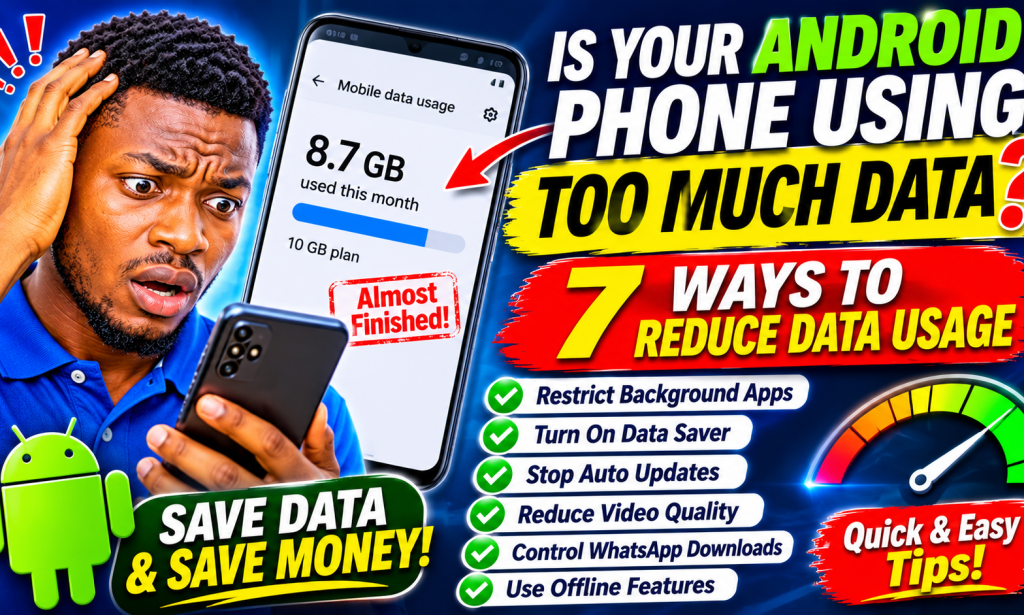
Have you ever subscribed to a mobile data plan, only to discover that most of your data has disappeared before the month is over?
You may not have spent hours watching videos or downloading large files, yet your data balance keeps reducing. This can be frustrating, especially when you are trying to manage a limited data budget.
What many Android users don't realise is that some applications can consume mobile data even when they are not actively using their phones. Automatic updates, background activities, cloud backups, and video streaming can all contribute to high data consumption.
The good news is that you don't always need to buy a bigger data plan. There are several settings you can adjust to have better control over how your phone uses mobile data.
Here are seven practical ways to reduce unnecessary data consumption on your Android phone.
1. Restrict Background Data for Unnecessary Apps
Some applications continue using mobile data even when you are not opening them.
For example, social media applications may refresh content, synchronise information, and download updates in the background.
If several applications are doing this, they can consume a noticeable amount of data over time.
To check background data usage:
Open your phone's Settings.
Go to Apps or App Management.
Select an application you want to check.
Open Mobile Data or Data Usage.
Look for the Background Data option.
Turn it off if the application doesn't need background internet access.
The exact names may differ depending on your Android version and phone manufacturer.
Be careful not to restrict applications that need background internet access for important notifications, such as messaging or email apps.
2. Turn On Data Saver
Android has a built-in feature called Data Saver.
When enabled, it helps prevent many applications from using mobile data in the background.
This is particularly useful when you have a limited data subscription and want to reduce unnecessary consumption.
To activate it:
Open Settings.
Go to Network and Internet or Connections.
Select Data Saver.
Turn it on.
Some Android manufacturers place this option under Mobile Network or SIM Card settings.
You can also allow selected applications to use unrestricted data while Data Saver is enabled.
For example, you might allow your important messaging application to continue working normally while restricting less important apps.
3. Stop Automatic App Updates Over Mobile Data
One overlooked reason for disappearing data is automatic application updates.
Some apps receive updates regularly, and downloading several updates over mobile data can consume a significant amount of your subscription.
You can change this through the Google Play Store.
Follow these steps:
Open Google Play Store.
Tap your profile picture.
Select Settings.
Open Network Preferences.
Tap Auto-update apps.
Choose the option to update apps over Wi-Fi only.
This allows you to download updates when connected to Wi-Fi instead of using your mobile data.
If you don't have regular Wi-Fi access, you can still update important applications manually when necessary.
4. Reduce Video Quality on YouTube and Other Streaming Apps
Watching videos is one of the easiest ways to consume large amounts of mobile data.
A video playing in high definition can use considerably more data than the same video playing at a lower resolution.
If you frequently watch YouTube videos, consider reducing the playback quality.
You can do this by:
Opening YouTube.
Playing a video.
Tapping the settings icon.
Selecting Quality.
Choosing a lower resolution, such as 360p or 480p, when appropriate.
You can also check YouTube's video quality preferences and set lower quality for mobile networks.
Other streaming applications have similar settings.
You don't always need the highest video quality, especially when watching videos on a small smartphone screen.
5. Check Which Apps Are Consuming the Most Data
Instead of guessing why your data finishes quickly, check your phone's data usage statistics.
Android allows you to see how much mobile data individual applications have consumed during a selected period.
To check:
Open Settings.
Select Network and Internet, Connections, or Mobile Network.
Find Data Usage.
Open Mobile Data Usage.
You should see a list of applications arranged according to their data consumption.
Pay attention to applications you rarely use but that appear high on the list.
This information can help you identify which applications need attention.
Remember that the data usage period on your phone may not match your network provider's billing or subscription period. You can adjust the billing cycle in settings where supported.
6. Disable Automatic Media Downloads on WhatsApp
WhatsApp can consume a lot of mobile data, especially if you belong to groups where people regularly share pictures, videos, and documents.
The problem is that media files may download automatically unless you change the settings.
To control this:
Open WhatsApp.
Tap the three-dot menu.
Select Settings.
Open Storage and Data.
Find Media Auto-Download.
Adjust the options under When using mobile data.
You can choose which types of media should download automatically or disable automatic downloads entirely.
This means you can decide which pictures and videos are worth downloading instead of allowing every shared file to consume your data.
7. Use Offline Features Whenever Possible
Another simple way to save mobile data is to make use of offline features.
For example, you can download music, documents, maps, or educational materials when you have access to a reliable Wi-Fi connection.
Some applications allow you to download content for later use without needing an internet connection.
If you regularly read articles, listen to music, or study online, check whether the applications you use offer offline access.
However, remember that downloading content still consumes data at the time of download. The advantage is that you won't need to stream or download the same content repeatedly.
Bonus Tip: Set a Mobile Data Warning
Android also allows you to set a data warning or usage limit on many devices.
This can help you avoid using your entire subscription without realising it.
For example, if you subscribe to a 10GB data plan, you could set a warning at 8GB.
Your phone will then notify you when your usage reaches that level.
Some devices also allow you to set a hard data limit, although the exact feature and behaviour vary by manufacturer.
You can usually find these options under Settings and Data Usage.
Final Thoughts
Mobile data can disappear quickly when several applications are using the internet in the background or downloading content automatically.
However, you can take control of much of this activity by adjusting your Android settings.
Start by checking which applications consume the most data, enabling Data Saver, restricting unnecessary background activity, and changing automatic download settings.
You don't need to apply every restriction to every application. The goal is to reduce unnecessary consumption without affecting the services you depend on.
What usually consumes most of your mobile data? Is it YouTube, WhatsApp, TikTok, Instagram, or applications running in the background? Share your experience in the comments. Your answer might help another Android user manage their data better.










































You must be logged in to post a comment.