

As a student in Warri, Delta State, dealing with unstable electricity from NEPA can be frustrating. Sometimes, the power supply disappears when you need it most, especially when you are studying, preparing assignments, or attending online classes.
My HP laptop battery also used to drain quickly, making it difficult to study without constantly looking for somewhere to charge it. Since electricity is not always available, I had to learn how to manage my laptop battery and reduce unnecessary data consumption.
Here are the practical things I do to make my HP laptop battery last longer and save internet data.
1. Reduce Your Laptop Screen Brightness
One of the easiest ways to save laptop battery is to reduce screen brightness. A bright display consumes more power, especially when you use your laptop for several hours.
I usually reduce my HP laptop brightness to a comfortable but low level. You do not need maximum brightness when studying indoors or reading documents.
Reducing brightness helps conserve battery power and makes it possible to use your laptop for longer without charging.
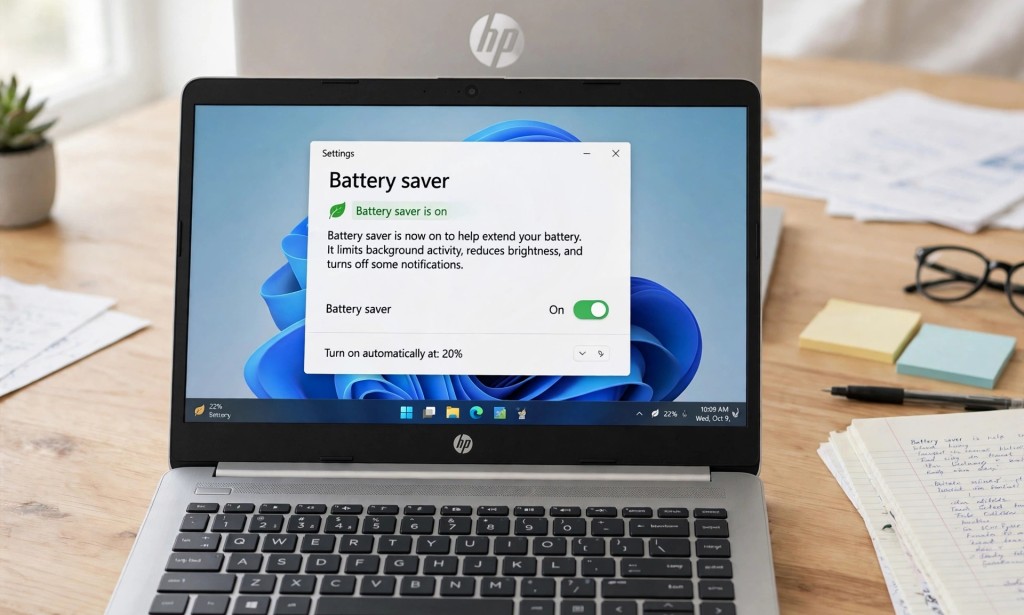
2. Turn On Battery Saver
Windows has a feature called Battery Saver that helps reduce power consumption when your laptop is running on battery.
When I am not close to a power source, I turn on Battery Saver to reduce unnecessary background activity and extend battery life.
You can usually find this option under:
- Open Settings.
- Select System.
- Click Power & battery.
- Find Battery Saver or Energy Saver and turn it on.
The exact menu names may differ depending on your Windows version.
3. Close Applications You Are Not Using
Some applications continue running in the background even when you are not actively using them. These applications can consume processing power, memory, internet data, and battery.
I close applications I do not need, especially programs that run continuously in the background.
For example, if I am studying offline, I do not need WhatsApp Desktop, unnecessary browser tabs, or other applications running at the same time.
Closing unused applications helps reduce unnecessary power consumption.
4. Charge Your Laptop When Electricity Is Available
Because electricity is not stable in Warri, I take advantage of the available power supply to charge my laptop.
When NEPA brings light, I charge my laptop and disconnect the charger when it is fully charged. This helps ensure that I have enough battery power when electricity goes off again.
However, modern laptops are designed to manage charging automatically, so leaving a laptop connected occasionally is not automatically harmful. If your HP laptop has a battery health or adaptive charging feature, you can use it to help protect battery lifespan.
Also, avoid exposing your laptop to excessive heat while charging or using it.
5. Stop Unnecessary Automatic Updates and Use a Metered Connection
Windows updates and application updates can consume a lot of internet data, especially when you are using a limited data subscription.
I manage automatic downloads and updates so they do not consume my data unexpectedly.
One useful Windows feature is Metered Connection. When you enable it for your Wi-Fi network, Windows can reduce certain background data usage.
To enable it:
- Open Settings.
- Select Network & Internet.
- Click Wi-Fi.
- Select your connected Wi-Fi network.
- Turn on Metered Connection.
Remember that a metered connection does not block every update or application download. Check your update settings regularly rather than permanently ignoring important security updates.
6. Download Your School Notes and Read Offline
This is one of the most useful habits I have developed as a student.
Instead of connecting to the internet every time I want to study, I download my school notes, lecture materials, PDF documents, and assignments when electricity and internet access are available.
I can then read these materials offline without repeatedly using mobile data or keeping my Wi-Fi connected.
If you are a student, this simple habit can save you money, especially when you depend on expensive mobile data subscriptions.
7. Change Your Laptop Power Mode to Best Power Efficiency
Windows allows you to choose how your laptop manages performance and power consumption.
When I want my battery to last longer, I select Best Power Efficiency or Best Power Saving instead of Best Performance.
To change this setting:
- Open Windows Settings.
- Go to System.
- Select Power & battery.
- Find the Power mode option.
- Select Best power efficiency or the available battery-saving option.
This setting reduces power consumption by adjusting how your laptop uses its resources. It may also reduce performance slightly, but that is usually acceptable when you are reading notes, typing assignments, or browsing lightly.
8. Turn Off Keyboard Backlight and Bluetooth When Not Needed
Some HP laptops come with a backlit keyboard that makes typing easier in dark environments. However, the keyboard light also uses some battery power.
When I do not need it, I reduce the keyboard brightness or turn it off using the appropriate keyboard shortcut for my HP model.
I also turn off Bluetooth when I am not connecting wireless devices such as headphones, a mouse, or a keyboard.
These small adjustments can help reduce unnecessary power consumption.
9. Control Background and Startup Applications
Some applications automatically start when Windows boots. Others continue running in the background even when you are not using them.
I check these applications and disable unnecessary startup programs to reduce background activity.
To check startup applications:
- Press Ctrl + Shift + Esc to open Task Manager.
- Select the Startup apps section.
- Review the applications listed.
- Disable programs you do not need to launch automatically.
You can also check the Processes section to identify applications consuming significant power or system resources.
Be careful not to end unfamiliar Windows system processes or essential security applications. Close only programs you recognise and do not currently need.
10. Save Internet Data by Controlling Video Playback
Internet data is another major challenge for students. Sometimes, you connect your laptop to Wi-Fi only to discover that videos and automatic downloads have consumed more data than expected.
To avoid unnecessary data usage, I control how websites and applications use the internet.
Here are some habits that help:
- Avoid playing YouTube videos automatically when you only want to read comments or search for information.
- Reduce video quality when high resolution is unnecessary.
- Download assignments and study materials once instead of repeatedly opening or downloading them.
- Close browser tabs and applications that are using the internet unnecessarily.
- Use a browser with suitable privacy and data-saving features.
I also use Brave Browser for browsing. Its built-in Shields feature blocks many advertisements and trackers, which can reduce unnecessary page loading and data usage on some websites. However, actual savings depend on the websites you visit.
11. Avoid Overheating Your Laptop
Another important thing I have learned is that laptop ventilation matters.
I avoid placing my HP laptop directly on a bed, pillow, or soft surface because these materials can block the air vents and prevent heat from escaping properly.
Instead, I place my laptop on a table or another hard, flat surface that allows proper airflow.
Dust can also accumulate inside the cooling system and affect ventilation. Keep the air vents clean, and if the fan is clogged or the laptop regularly overheats, consider having it inspected and cleaned by a qualified technician.
Heat can affect battery health over time, so keeping your laptop cool is important.
How These Tips Helped Me as a Student in Warri
Since I started practising these habits, I have noticed a significant improvement in how I manage my laptop.
My HP laptop battery now lasts up to five hours under my usual usage conditions. I also spend less time searching for electricity because I can complete more of my schoolwork using battery power.
By downloading study materials, controlling automatic downloads, and reducing unnecessary internet usage, I have also been able to save data. Based on my personal usage, I estimate that I save up to 2GB of data every week.
Of course, battery life and data savings depend on the laptop model, battery condition, applications being used, screen brightness, and internet activities.
Conclusion: You Can Manage Your Laptop Even When Electricity Is Unstable
As a student in Nigeria, you do not always have the luxury of enjoying a stable electricity supply. However, learning how to manage your laptop battery and internet data can make studying easier.
You do not need to buy a new laptop immediately just because your battery does not last as long as you expect. Start by reducing screen brightness, closing unnecessary applications, using battery-saving settings, downloading school materials for offline reading, and keeping your laptop cool.
These simple habits can help you get more out of your laptop, especially when electricity and internet data are expensive.
If you are a student using an HP laptop, try these tips and see which ones make the biggest difference for you.


You must be logged in to post a comment.