
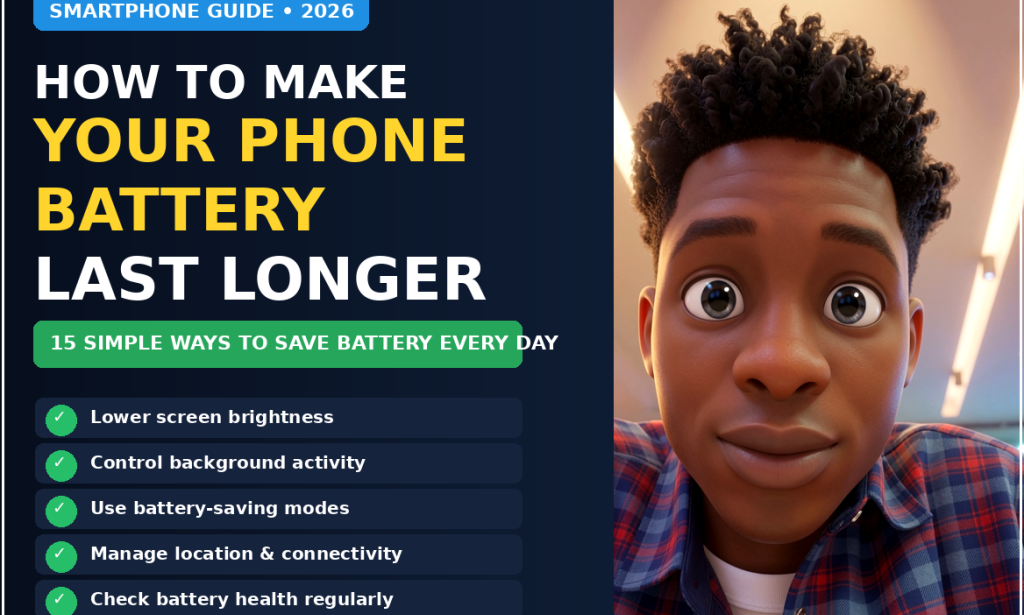
How to Make Your Smartphone Battery Last Longer in 2026: 20 Simple Tips That Actually Help
Your smartphone may be one of the most important devices you use every day.
You probably use it for communication, work, entertainment, banking, navigation, photography, learning, shopping, social media and many other activities.
That makes battery life extremely important.
Few things are more frustrating than leaving home with what appears to be a healthy battery percentage and then discovering that your phone is almost empty when you actually need it.
Sometimes the problem isn't that your battery is defective.
Your phone may simply be using more power than necessary.
Modern smartphones have bright displays, fast processors, wireless connections, location services, notifications, background applications and many other features running throughout the day.
The good news is that you can often improve battery life without buying a new phone.
You also don't need to keep your phone in an extremely restricted mode all day.
A few sensible changes can make a noticeable difference.
This guide explains practical ways to make your smartphone battery last longer in 2026, regardless of whether you use an Android phone or an iPhone.
Why Smartphone Batteries Drain So Quickly
Battery usage depends on many factors.
Some of the biggest ones include:
-
Screen brightness
-
Screen refresh rate
-
Mobile network strength
-
Wi-Fi usage
-
Bluetooth
-
GPS and location services
-
Background applications
-
Video streaming
-
Gaming
-
Camera use
-
Push notifications
-
Automatic synchronization
-
Hotspot usage
-
Battery age
-
Temperature
-
Poor charging habits
Not every phone experiences the same battery drain.
Two people can own similar phones and get very different battery life because they use their devices differently.
That's why the best solution isn't always one dramatic setting.
Instead, it's about identifying what is consuming the most power on your particular phone.
Step 1: Check Which Apps Use the Most Battery
Before changing lots of settings, find out what's actually consuming your battery.
Most modern smartphones provide a battery usage section.
Look for a list showing applications and their battery consumption.
You may discover that one application is responsible for a surprisingly large percentage of your daily battery usage.
For example, you might find that:
-
A social media application uses a lot of power.
-
A navigation application continues using location.
-
A game consumes significant battery.
-
A video application keeps the screen active.
-
An application is repeatedly running in the background.
This information gives you a starting point.
Don't guess.
Check the battery statistics first.
Step 2: Reduce Screen Brightness
Your display can be one of the largest sources of battery consumption.
A very bright screen requires more energy than a dimmer one.
You don't have to make your display extremely dark.
Instead, use a comfortable brightness level.
Automatic brightness can also help your phone adjust the display according to the environment.
When you're indoors, you may not need the same brightness level required outside in direct sunlight.
Reducing brightness slightly can help you get more battery life without dramatically changing how you use your phone.
Step 3: Reduce Your Screen Timeout
If your phone remains active for several minutes after you stop using it, you're wasting battery.
Screen timeout controls how long the display stays on when you're not interacting with the phone.
A shorter timeout means the screen turns off sooner.
For example, instead of leaving the screen active for several minutes, choose a shorter practical period.
This is especially useful if you frequently check your phone and then put it down without manually locking the display.
Step 4: Consider a Lower Screen Refresh Rate
Some modern smartphones support high refresh rates such as:
-
90Hz
-
120Hz
-
Higher rates on certain devices
Higher refresh rates can make scrolling and animations look smoother.
But they can also consume more power.
If battery life is more important to you than maximum smoothness, check whether your phone allows you to use a standard or adaptive refresh rate.
Adaptive settings can be useful because the phone can adjust the refresh rate depending on what you're doing.
Step 5: Use Dark Mode When It Makes Sense
Dark mode changes the appearance of compatible applications and interfaces.
On phones with OLED or similar display technology, displaying darker pixels can sometimes reduce power consumption.
The effect varies depending on the phone, application and brightness level.
Dark mode also has another advantage:
Some people find it more comfortable in low-light environments.
It isn't a magical battery-saving solution, but it's an easy option to try.
Step 6: Turn Off Features You Don't Need
Your phone contains many wireless and connectivity features.
You may not need every feature active all the time.
Depending on your situation, consider disabling things you aren't using, such as:
-
Bluetooth
-
Hotspot
-
Nearby-device scanning
-
Certain wireless connections
-
Unnecessary location features
Don't turn off something you actually need.
The goal is simply to avoid keeping unnecessary features active continuously.
Step 7: Manage Location Services
Location services can be extremely useful.
Maps, navigation, weather, transportation and other applications may need your location.
But not every application needs constant access to it.
Review which applications can access your location.
Depending on your phone, you may be able to choose options such as:
-
Never
-
Ask each time
-
While using the app
-
Always
For applications that don't genuinely need constant location access, limiting permission may reduce unnecessary background activity.
It can also improve privacy.
Step 8: Control Background App Activity
Some applications continue performing tasks when you're not actively using them.
They may:
-
Refresh content
-
Synchronize information
-
Check for updates
-
Upload files
-
Download content
-
Retrieve notifications
Background activity can be useful.
But excessive background activity can consume battery.
Review your battery settings and identify applications that don't need to remain active in the background.
Step 9: Reduce Unnecessary Notifications
Notifications wake your phone and may activate the display.
If you receive dozens or hundreds of notifications every day, many of them may be unnecessary.
Ask yourself:
Do I really need an alert every time this application has something new?
You can often disable notifications from applications that aren't important.
This can help reduce:
-
Screen activations
-
Sounds
-
Vibrations
-
Background activity
It can also make your phone less distracting.
Step 10: Be Careful With Video Streaming
Watching videos can consume significant battery.
Streaming usually requires:
-
Active display
-
Internet connection
-
Video processing
-
Audio
-
Continuous network activity
If you need to conserve battery, consider reducing video quality when high resolution isn't necessary.
You can also download content over Wi-Fi when the service supports legitimate offline viewing.
This may reduce repeated network usage while traveling.
Step 11: Limit Intensive Gaming When Your Battery Is Low
Mobile games can place heavy demands on your phone.
They may use:
-
Processor
-
Graphics processor
-
Display
-
Speakers
-
Internet connection
-
High refresh rate
If your battery is already low and you need the phone later, intensive gaming may not be the best activity.
Many games also offer graphics or performance settings.
Lowering graphical quality can sometimes reduce power consumption.
Step 12: Watch Out for Poor Network Signal
This is an issue many people don't think about.
When your phone has a weak cellular signal, it may work harder to maintain communication with the network.
You might notice faster battery drain in areas with poor reception.
If you are somewhere with no useful cellular connection and don't need to remain connected, airplane mode can sometimes help.
For example, when traveling on an airplane or staying somewhere without usable service, airplane mode can prevent the phone from repeatedly searching for a network.
Step 13: Use Wi-Fi When Appropriate
When reliable Wi-Fi is available, connecting to it can be useful.
Mobile network activity can vary depending on signal quality and network conditions.
However, don't obsess over whether Wi-Fi or mobile data is always more efficient.
The actual impact depends on your phone, network and usage.
The important thing is to use the connection that makes sense for your situation.
Step 14: Be Careful With Mobile Hotspot
A mobile hotspot can be extremely useful.
It can turn your phone into an internet connection for another device.
But hotspot use can drain the battery relatively quickly.
If you're finished using it, turn it off.
Don't leave it running unnecessarily.
If you're using a hotspot for an extended period, consider keeping the phone connected to a suitable power source when practical.
Step 15: Manage Automatic Downloads and Synchronization
Your phone may automatically synchronize information throughout the day.
Examples include:
-
Photos
-
Email
-
Files
-
Documents
-
Contacts
-
Cloud data
-
Application content
Automatic synchronization is convenient.
But you may not need every application constantly updating.
Review your settings and make sure automatic syncing matches your actual needs.
Step 16: Keep Your Apps Updated
Updating applications isn't only about getting new features.
Updates can also include:
-
Bug fixes
-
Security improvements
-
Performance improvements
-
Compatibility changes
-
Battery-related fixes
If an application has a known performance problem, an update may improve it.
However, don't install random applications promising to "boost" or "repair" your battery without understanding what they actually do.
Your phone's built-in battery management tools are usually the better place to start.
Step 17: Keep Your Phone's Operating System Updated
The same principle applies to the phone's operating system.
System updates can include improvements to:
-
Performance
-
Security
-
Power management
-
Compatibility
-
Stability
Before major updates, make sure your important data is backed up.
Then keep your device reasonably current rather than ignoring updates indefinitely.
Step 18: Use Battery Saver When You Actually Need It
Battery Saver or Low Power Mode can be extremely useful.
These modes may reduce certain background activities and limit some performance-intensive features.
You don't necessarily need to use battery-saving mode constantly.
But if your battery is at:
20%
and you still need the phone for several hours, enabling a battery-saving mode can help you stretch the remaining charge.
Step 19: Don't Let Your Phone Become Extremely Hot
Heat is not good for batteries.
Your phone can become hot when:
-
Gaming heavily
-
Recording video for long periods
-
Using navigation for extended periods
-
Charging in hot environments
-
Sitting in direct sunlight
-
Running demanding applications
Avoid deliberately exposing your phone to excessive heat.
If your phone becomes unusually hot, reduce the workload and move it to a cooler environment.
Don't put a hot phone into a refrigerator or freezer.
Sudden temperature changes can create other problems.
Step 20: Pay Attention to Battery Health
A battery naturally loses capacity over time.
After years of charging cycles, the battery may not hold as much energy as it did when the phone was new.
This means:
A phone that originally lasted all day might eventually need charging much earlier.
Check whether your phone provides battery health information.
You may see information about:
-
Maximum capacity
-
Battery condition
-
Charging cycles
-
Performance management
The exact information depends on the device.
Battery Life vs. Battery Health
These are two different things.
Battery life
How long your phone operates on one charge.
Battery health
The condition and remaining capacity of the physical battery.
You can improve daily battery life by reducing power consumption.
But you cannot permanently restore an aging battery to its original physical capacity through a software setting.
If the battery has significantly degraded, replacement may eventually be the appropriate solution.
Does Charging Overnight Damage Your Phone?
Modern smartphones use charging management systems designed to manage charging intelligently.
Many devices also offer optimized or adaptive charging features.
Instead of worrying about every individual charge, focus on using the charging features provided by your phone and avoiding excessive heat.
If your phone offers optimized charging, consider enabling it.
Should You Always Charge to 100%?
Not necessarily.
Your charging needs depend on your daily routine.
If you're leaving home for a long day, charging fully may be useful.
If you're working near a charger, you may not need to maximize the battery every time.
Modern battery systems are designed to handle normal charging patterns.
The most important thing is to avoid extreme heat and use appropriate chargers and cables.
Should You Let the Battery Reach 0%?
You generally don't need to deliberately drain your phone to zero before charging it.
Modern rechargeable batteries don't require the old-fashioned "full discharge" routine that was once commonly recommended for older battery technologies.
If your phone reaches a low percentage, recharge it when practical.
Use Reliable Chargers and Cables
Your charger matters.
Use the charger and cable recommended or approved for your device and charging standard.
Avoid extremely cheap or questionable charging accessories from unknown sources.
A proper charger can help ensure that charging operates as intended.
Don't Charge Your Phone in Excessive Heat
Charging already generates some heat.
Combining charging with a hot environment can increase the temperature further.
Avoid leaving a charging phone:
-
Under a pillow
-
In direct sunlight
-
Inside a hot vehicle
-
Near strong heat sources
Give the device enough ventilation.
Remove Unnecessary Widgets and Live Features
Some home-screen widgets continuously update information.
Examples include:
-
Weather
-
News
-
Stocks
-
Sports
-
Social updates
Many are useful.
But if you have numerous constantly updating widgets that you rarely look at, consider removing some.
The goal is not to make your phone boring.
It's to reduce unnecessary activity.
Reduce Vibration When You Don't Need It
Vibration uses energy.
The amount may be small for individual events, but frequent vibrations throughout the day can contribute to battery usage.
If you receive many notifications, consider reducing unnecessary vibration alerts.
This can also make your phone quieter and less distracting.
Use Airplane Mode in the Right Situations
Airplane mode isn't only for flights.
It can be useful when:
-
You're sleeping and don't need connectivity
-
You're somewhere without useful cellular service
-
You're trying to conserve battery during an emergency
-
You're reading offline
-
You're traveling without needing network access
You can disable it again when you need connectivity.
Don't Obsess Over Every Percentage
Battery optimization should make your life easier, not turn into another source of stress.
You don't need to constantly monitor:
97%
96%
95%
94%
Small fluctuations are normal.
Focus on the big sources of battery consumption.
What to Do When Your Battery Is Almost Empty
Suppose you're at:
10%
and you need your phone for several hours.
Prioritize essential functions.
You can:
-
Enable Battery Saver or Low Power Mode.
-
Reduce screen brightness.
-
Turn off unnecessary wireless features.
-
Disable unnecessary notifications.
-
Close or stop using demanding applications.
-
Avoid gaming and video streaming.
-
Use Wi-Fi when appropriate.
-
Keep the phone cool.
-
Avoid unnecessary camera use.
-
Save the remaining battery for essential communication.
What to Do in an Emergency
If you are traveling, hiking, dealing with a power outage or facing another situation where communication is important, battery conservation becomes more serious.
Keep enough battery for:
-
Emergency calls
-
Important messages
-
Navigation
-
Essential information
Avoid using your remaining power for entertainment when communication may become important.
A Simple Daily Battery-Saving Routine
You don't need to change dozens of settings every morning.
Instead:
Morning
Check your battery percentage.
Make sure Battery Saver isn't unnecessarily restricting features you need.
During the day
Keep brightness reasonable.
Avoid unnecessary background activity.
When battery gets low
Enable your phone's battery-saving mode.
Reduce demanding activities.
At night
Charge using a reliable charging setup.
Avoid excessive heat.
This simple routine can be enough for many people.
10 Things That Usually Make the Biggest Difference
If you don't want to change everything, start with these:
-
Reduce unnecessary screen brightness.
-
Shorten screen timeout.
-
Check battery usage by app.
-
Restrict unnecessary background activity.
-
Reduce unnecessary notifications.
-
Manage location permissions.
-
Turn off unused hotspot and connectivity features.
-
Use Battery Saver when appropriate.
-
Keep your phone cool.
-
Replace an aging battery when necessary.
Common Battery Mistakes to Avoid
Mistake 1: Keeping the screen extremely bright
Brightness can consume significant power.
Mistake 2: Leaving hotspot active
Turn it off when you're finished.
Mistake 3: Allowing every app to access your location
Review permissions.
Mistake 4: Ignoring battery usage statistics
Your phone already provides clues about what's consuming power.
Mistake 5: Keeping dozens of unnecessary notifications
Reduce alerts you don't need.
Mistake 6: Using demanding apps when battery is critical
Save the remaining power for important tasks.
Mistake 7: Exposing the phone to excessive heat
Temperature matters.
Mistake 8: Using questionable chargers
Use reliable charging accessories.
Mistake 9: Expecting software to restore an old battery
Settings can reduce consumption, but they can't physically restore degraded battery capacity.
Mistake 10: Buying a new phone before checking the battery
Sometimes replacing an aging battery can be more practical than replacing the entire device, depending on the phone and repair options available.
When Should You Consider Replacing the Battery?
If your phone is otherwise working well but the battery has become severely degraded, investigate whether an official or reputable battery replacement service is available for your device.
Consider replacement when:
-
Battery life has become extremely poor.
-
The device shuts down unexpectedly.
-
Battery health is significantly degraded.
-
The phone is otherwise suitable for your needs.
However, if the phone has multiple problems, such as a damaged screen, poor performance and an outdated operating system, replacing the entire device might make more sense.
Compare the cost before making a decision.
How to Know Whether an App Is Draining Your Battery
Check your phone's battery usage statistics.
Look for applications that consume unusually large amounts of power compared with how much you actually use them.
For example, if an app you rarely open is consuming significant battery, investigate it.
Possible solutions may include:
-
Updating the app
-
Restricting background activity
-
Changing permissions
-
Disabling unnecessary notifications
-
Uninstalling the app if you no longer need it
Don't Automatically Blame Every Background App
Background activity isn't always bad.
Some applications need to work in the background.
For example:
-
Messaging
-
Email
-
Security
-
Cloud synchronization
-
Navigation
-
Important system services
The goal is not to shut down everything.
It's to identify unnecessary activity.
Your Phone's Built-In Battery Tools Are Your Best Starting Point
Before installing third-party "battery booster" applications, check the settings already included with your phone.
Most modern devices provide useful information about:
-
Battery usage
-
Battery health
-
Power-saving modes
-
Charging
-
App activity
You may not need another application to manage your battery.
Final Battery-Saving Checklist
Before finishing, check whether you have:
-
Reviewed battery usage
-
Reduced excessive brightness
-
Shortened screen timeout
-
Reviewed refresh-rate settings
-
Enabled dark mode if useful
-
Restricted unnecessary background activity
-
Reduced unnecessary notifications
-
Reviewed location permissions
-
Disabled unused hotspot
-
Managed automatic synchronization
-
Updated your phone
-
Updated important apps
-
Used Battery Saver when necessary
-
Protected the phone from excessive heat
-
Checked battery health
-
Used reliable charging accessories
Final Thoughts
You don't necessarily need a new smartphone just because your battery seems to disappear quickly.
Start by finding out what's actually consuming the power.
Check battery statistics.
Reduce unnecessary screen usage.
Manage background activity.
Review location permissions.
Control notifications.
Turn off features you aren't using.
Keep your device cool.
Use battery-saving modes when necessary.
And pay attention to the physical condition of the battery itself.
The most important thing is not to follow every battery-saving tip you see online.
Instead, identify the changes that make sense for the way you use your phone.
If you spend hours watching videos, screen and network usage may be your biggest concern.
If you travel frequently, network signal and navigation may matter more.
If you mostly use messaging and email, background activity and screen settings may make a bigger difference.
There is no single battery-saving setting that works equally for everyone.
The best approach is simple:
Find what is consuming the power, reduce what you don't need, and take care of the battery you have.
With a few practical changes, you may be able to get more useful hours from your smartphone every day without constantly searching for a charger.

You must be logged in to post a comment.